Put Several MP3 Files in One ZIP on iPhone
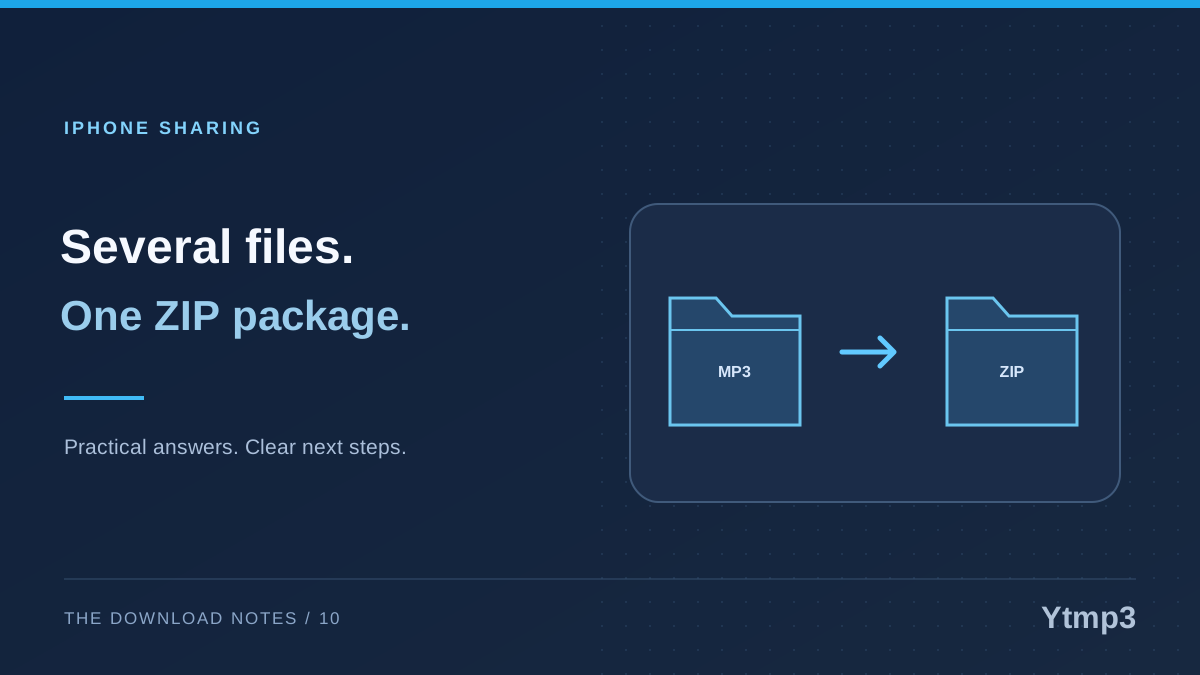
A ZIP archive can keep several MP3 files together as one package on an iPhone. It is useful when you want to send a small collection without selecting every track again. It does not merge the recordings into a single song, and it should not be treated as a promise of a dramatically smaller file.
After saving eligible audio through Ytmp3, you may want to share recordings you own or have permission to send. For example, three rehearsal takes can travel together in one named archive. The important work is choosing the correct files, checking the bundle and understanding what the recipient will receive.
Use a ZIP when the files belong together
A bundle is helpful when the recipient needs a complete set. Sending one archive can make it easier to see that the items belong to the same task. A descriptive name can also explain the collection more clearly than several unrelated attachment names.
Consider a fictional package containing a warmup, a full run and a short closing exercise. Keeping those three recordings together gives the recipient a clear starting point. If only one file is relevant, however, sending a single audio copy may be simpler than adding an archive layer.
Do not use a ZIP to hide what you are sending. Tell the recipient that the package contains audio, give it an understandable name and include only the intended items. A convenient container is not a reason to attach an entire folder of unrelated personal files.
Select and compress the intended audio files
In the iPhone Files app, open the location containing the recordings. Use the selection controls to choose the relevant files, then choose Compress from the available menu. Files creates a ZIP archive from the selection. Menu placement can vary with the device and system version.
Inspect the selection before confirming it. Similar names make it easy to include an older take or omit one item. If the files are scattered across locations, first consider whether bringing intentional copies into one temporary folder will make the collection easier to review.
Keep that preparation narrow. You do not need to move the only original out of its established location just to create a package. Use copies when a temporary working folder is helpful, and retain the source recordings while you verify the archive.
Name the archive for the recipient
A default archive name says little about its purpose. Give the ZIP a concise, descriptive label that makes sense outside your own phone. A fictional name such as rehearsal-audio-september.zip tells the recipient more than a generic numbered archive.
Avoid putting private details into the filename when a neutral project name will do. The archive name may appear in notifications, attachment lists or shared folders. Include enough context to identify the bundle without making its title a record of personal information.
Keep the ZIP extension intact. Renaming the archive to end in MP3 will not turn the package into playable audio. The recipient needs to extract the files before using them individually, unless their chosen application explicitly supports browsing an archive.
Open the package once before sending it
Files can open a ZIP and extract its contents into a folder. Use that capability to inspect the bundle you are about to send. Check the number of audio files, their names and a sample of the extracted recordings.
This is a practical quality check rather than a guarantee against every possible problem. It can reveal an omitted track, an unintended document or a mistaken selection while you still have the originals nearby. Test the archive itself, not just the source folder you remember selecting.
- Confirm the archive has the intended name.
- Open or extract a test copy.
- Compare the extracted file count with your planned set.
- Play a representative audio file.
- Remove unnecessary temporary extracts only after the check.
For a removable-storage handoff instead of a message attachment, consider the separate requirements of copying music through USB storage. Packaging and transferring are different operations, even when both are part of the same task.
Check sharing limits and expectations
MP3 already uses audio compression, so wrapping a group in ZIP does not guarantee a large storage saving. Treat the archive primarily as a way to keep files together. Check the actual resulting size before deciding whether your chosen app can send it.
Attachment limits and recipient capabilities vary. If the package is too large, do not assume renaming it or trying repeatedly changes those limits. Choose an appropriate transfer method and tell the recipient what they need to open.
Also distinguish sending a copy from granting access to a cloud location. The article on sharing a file rather than its whole folder helps keep that decision focused. Once a recipient has a copy, you should not assume you can retrieve or revoke every later copy.
Does ZIP join the tracks into one continuous recording?
No. It packages separate files. Combining audio is a different editing operation, not a consequence of placing files in an archive.
Should I delete the originals after creating the ZIP?
Not automatically. Verify the archive and decide which copies you need. Creating a package for sharing is not the same as establishing a tested long-term backup.
A useful archive is easy to identify, contains only the intended recordings and has been checked before it leaves your device. That matters more than achieving a smaller number on the file-size display.