An Audio File in iCloud Is Not the Same as a Local Copy
Seeing an audio filename in iCloud Drive does not, by itself, tell you that a usable local copy is ready for offline playback. The listing identifies an item in a cloud-backed location. If you plan to listen without a connection, check the exact file on the exact device before you need it.
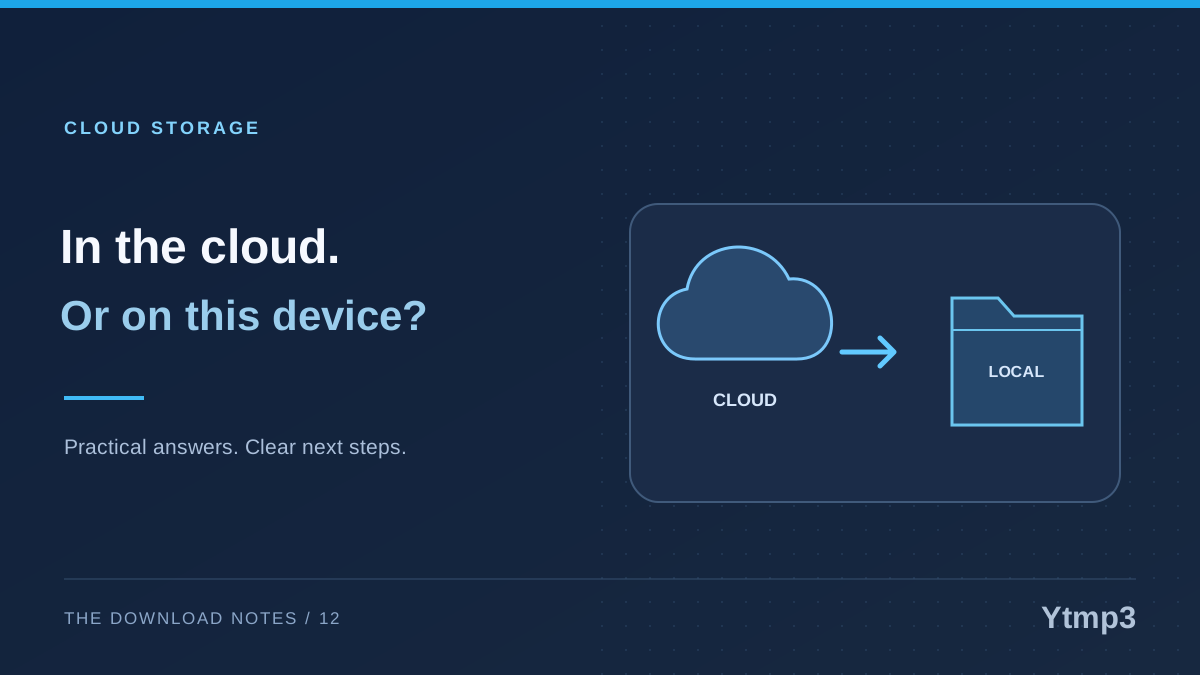
After saving eligible audio through Ytmp3, you may choose a local folder or a cloud location in the save workflow. Those choices serve different purposes. A cloud location can help make files available across devices, while a local copy answers a more immediate question: what can this device actually open now?
Identify where the file is stored
Open Files and look at the location containing the item, rather than judging from its title or thumbnail. A recently opened list can combine items from several places. The location label gives you a better starting point than a familiar filename alone.
For an illustrative example, imagine a recording named morning-rehearsal.mp3. You may have one copy in a local folder and another in iCloud Drive. Both can look similar in a list, but they are not necessarily the same storage choice or the same version.
Give the intended copy a recognizable location. Avoid repeatedly downloading the same recording just because you cannot immediately tell which item is local. First inspect what you already have and decide which location fits the way you plan to use it.
Separate synchronization from a completed transfer
iCloud Drive can synchronize files across devices using the same Apple Account. That is useful for continuing a task elsewhere, but synchronization and local availability are different parts of the process. A filename appearing on another device is not a substitute for opening the file there.
Consider a recording you prepared on a computer for later use on a phone. The sensible check is to open the intended item on the phone while you still have connectivity. Do not assume that an earlier success on the computer proves the phone is ready.
Storage limits, connection conditions and the device's management of cloud-backed items can affect the workflow. Read the current status shown in your installed system. Avoid relying on a particular icon or menu from another iOS version without checking what it means on your device.
Test the copy you plan to use
Before leaving a connection, open the saved audio from the intended location and let any required transfer finish. Check that the recording is correct and that it plays beyond its opening seconds. A quick preview of the wrong version is not a useful readiness test.
Then, when it is convenient and will not interrupt another task, test playback without relying on the network connection. This is an actual device check, not a guarantee inferred from a list entry. If the file will not open, address that while you still have time to choose and verify an appropriate local copy.
Keep the test narrow. You do not need to sign out of your account, reset cloud settings or remove shared files to establish whether one recording plays locally. Those are much broader actions with consequences beyond the download you are checking.
Keep location, labels and library entries distinct
Files tags can make an item easier to find, but a label does not perform a media transfer. Similarly, a favorite folder is a shortcut to a location, not a promise that all its contents are ready offline. Use these organization tools for navigation rather than treating them as download-status indicators.
The article on tagging MP3 files on iPhone explains how to group items without making unnecessary copies. That can keep a collection understandable while you separately check where the files are stored.
A music-library entry is another layer. Saving audio into Files or iCloud Drive does not automatically establish that it has been imported into your preferred music app. For the desktop workflow, see adding an MP3 to Music on Mac.
Make sharing and cleanup deliberate
A cloud folder may be private, shared with selected people or used in another workflow. Check the actual access arrangement before placing audio there. Do not assume that a familiar folder name means only you can see its contents.
When you no longer need a copy, consider which location you are removing it from and whether that action affects synchronized items elsewhere. Deleting an item and removing a local download are not necessarily the same command. Read the action shown rather than guessing from a general idea of cloud storage.
For a simple listening task, the useful outcome is clear: one known file, an intended location and a successful test on the device you will use. Adding extra folders or copies should solve a real need, not make that basic outcome harder to identify.
Does the filename prove the audio is on my phone?
No. Check its location and open the exact item. If offline use matters, verify that behavior directly rather than inferring it from the filename.
Will cloud storage automatically add the file to Music?
Do not assume so. File storage, synchronization and a music app's library are separate workflows, and their settings should be checked separately.