Copy MP3 Downloads to an Android SD Card Without Losing the Original
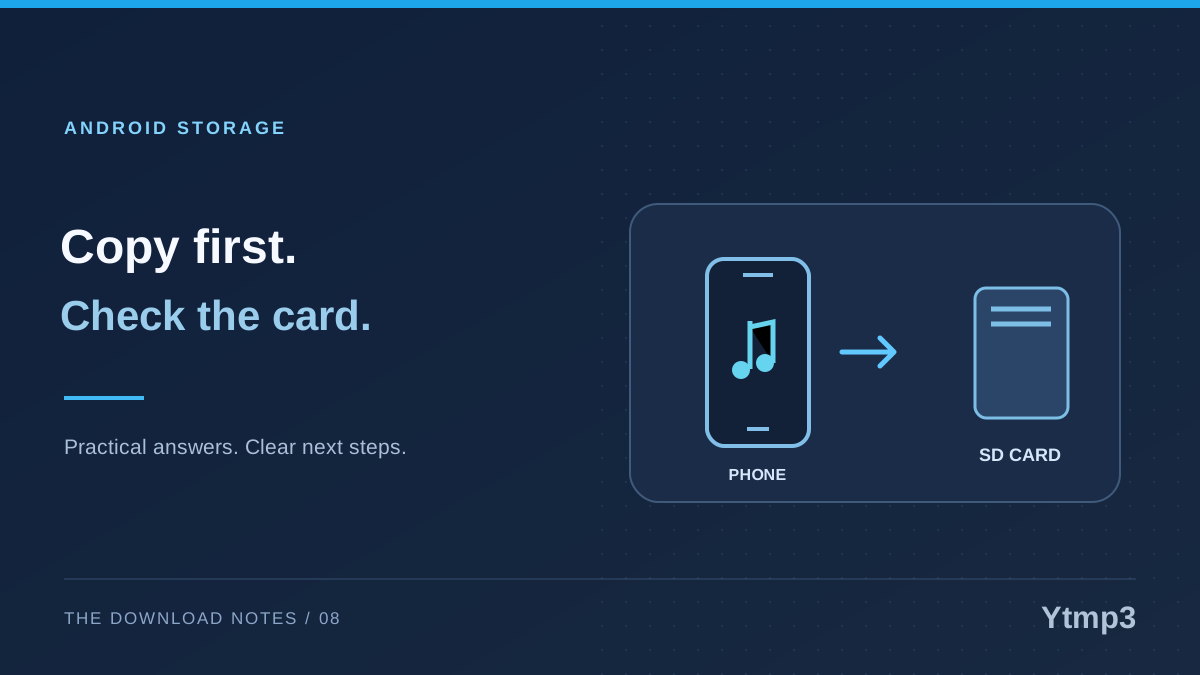
To keep an original MP3 while placing another copy on an Android SD card, choose a copy operation rather than a move. Then open the destination file and verify it before deciding what to remove. That order gives you a clear way to check the transfer without relying on the filename alone.
After saving an eligible audio file through Ytmp3, an SD card can be a useful destination on a phone that supports one. Availability depends on the device and how the card is configured. Do not assume every Android phone has an SD slot, or that a card missing from the file picker needs to be formatted.
Check that the card is available
Open your file-management app and look for the storage locations it recognizes. Files by Google supports moving or copying files to an available SD card on supported devices. If the card does not appear, pause the transfer plan and establish how the phone recognizes that storage.
A card configured as part of internal storage may not behave like a separate removable destination. Device settings and manufacturer behavior can also differ. Treat the missing location as something to investigate, not permission to erase or reconfigure the card.
Check available space before selecting a large group. Leave the original files untouched while you assess the destination. If the device reports a storage error, finish reading the message and follow guidance specific to your phone rather than trying repeated operations that make the situation less clear.
Copy first when you want a fallback
Copy and move are different choices. Copying is intended to retain the source while creating an item at the destination. Moving is intended to relocate it. When you want an opportunity to compare the result, copying gives you an easier starting point.
For an illustrative rehearsal collection, begin with one short recording you recognize. Select it, choose the available Copy to action and select the SD card destination. Create or choose a folder with a name that reflects the collection rather than placing every file in an unexplained root list.
Do not select an entire Downloads folder for a first test. That folder may contain documents, images and temporary files unrelated to your audio. A narrow selection is easier to verify and avoids transferring material you did not intend to put on removable storage.
Verify the destination before transferring more
Open the folder on the card after the copy completes. Check that the expected file is present and play that destination copy. If the source still exists on internal storage, make sure the player did not simply reopen it from a recent-items list.
Use a recognizable section of the recording for the comparison. The opening sound alone may not distinguish two similarly named takes. Check the name, duration and a later section if available, then confirm that the file is the one you meant to transfer.
- Confirm the card destination and folder name.
- Check the number of files copied.
- Open a destination file directly.
- Verify the intended recording and usable playback.
- Keep the source until the result is clear.
Only then repeat the process for a larger group. If a transfer fails, the small test helps you describe what failed without leaving a large collection in an uncertain state.
Make a deliberate decision about duplicates
After copying, you have intentionally kept two locations. That can be useful during verification, but it does not mean both copies need to remain forever. Decide which location is your working copy and which, if any, is a backup.
Before deleting an internal copy, consider whether an app or project refers to that exact location. A player may need to discover the card's file separately. A successful copy is not proof that every existing library entry has been updated to the new path.
Also avoid judging duplicates only by matching titles. The article on duplicate MP3 downloads and numbered filenames explains why two similarly labeled files may still deserve comparison. Remove only the copy you have identified, using a recoverable action where available.
Know when to stop instead of formatting
If the card disconnects, reports an error or cannot be opened, stop treating the operation as routine copying. Do not format it merely to make an audio transfer easier, especially if it contains photos or other files you need. Reformatting is a separate, potentially destructive action.
A different transfer method may fit your device better. For supported setups, copying between Android and USB storage is another workflow, but it has its own compatibility requirements. Switching methods should be a considered choice, not a claim that every drive will work.
Does moving save more internal space than copying?
A completed move is intended to relocate the source. A copy retains it, so checking and later removing an unneeded source is a separate decision. Verify before trying to reclaim space.
Will the music automatically appear in every player?
Not necessarily. File access, library discovery and player settings vary. Open the destination directly first, then check how your preferred app handles that storage.
A copy-first approach is useful because it separates transfer from cleanup. Confirm the card, copy a small sample, test the result and only then decide how to organize the rest.