Why Firefox Opens an MP3 Instead of Downloading It
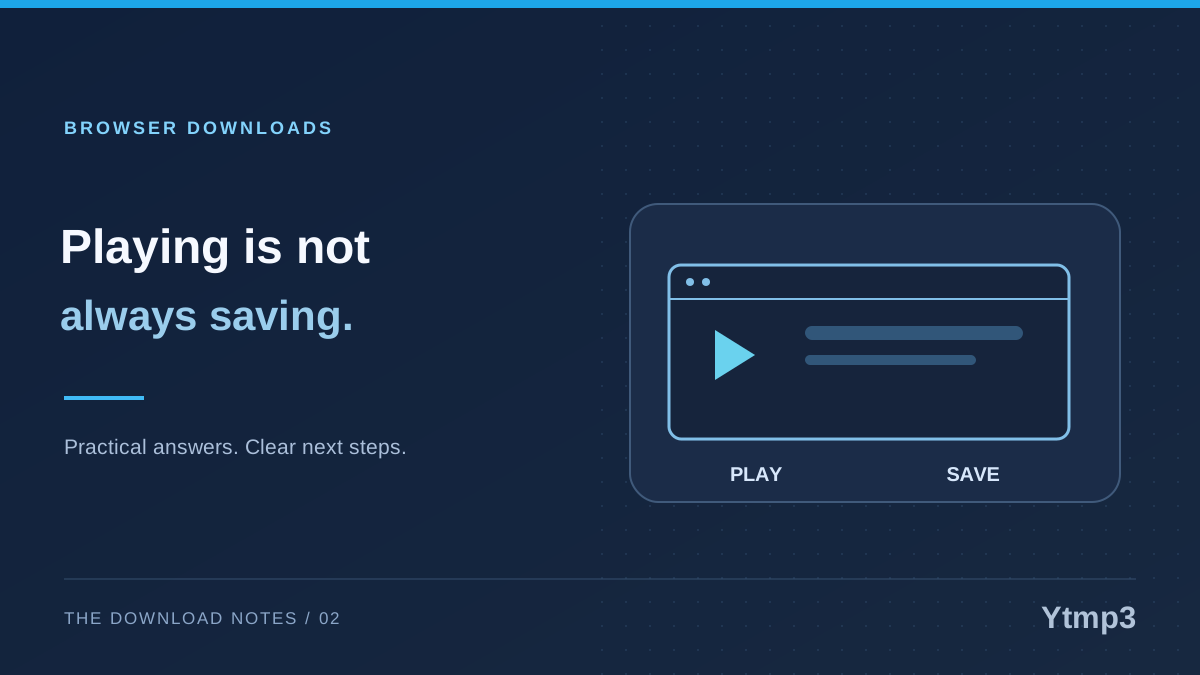
If Firefox opens an MP3 in a browser player, that does not necessarily mean the download failed. The browser may be handling a direct audio response as playable media. Listening in that tab and saving a reusable file are different actions, so check which one has actually happened before closing the page.
This is a useful distinction when moving from a result on Ytmp3 to a final download option. You may first see a source result, then an available file, and finally the browser's response. A player appearing at the last step is not proof that a copy has already been placed in your usual music folder.
Recognize playback before looking for a missing file
A simple audio page usually shows playback controls rather than a normal article or search result. Pressing play asks the browser to play the media it received. That alone tells you little about whether a separate, named file was saved to your chosen location.
Imagine you are saving a short recording you own for a presentation. You click an audio option, hear the recording in Firefox and immediately close the tab. Later, the presentation folder is empty. The useful question is not yet whether the source is broken. First establish whether you ever completed a save action and selected that folder.
Check Firefox's download panel and the intended destination. If there is no completed transfer there, avoid repeatedly clicking every visible button. Retrace the final step once and identify whether you are viewing a media player, a transfer prompt or an error message.
Use the available save action deliberately
Firefox may offer a save action through the media controls, a context menu or the page's actual download link. Available commands vary with the response and browser version. Use an option that clearly refers to the audio file you intended, and inspect the proposed filename and destination.
Do not assume that saving a whole web page produces an MP3. If the save dialog proposes an HTML page, you may be saving the surrounding document instead of the media. Cancel that operation and return to the actual available file option. Likewise, a screenshot of an audio player is only an image, not an audio backup.
The YouTube Downloader page can be a starting point for another eligible source, but changing the starting page does not control every browser response. The final available option and the way its server delivers it still matter.
Review Firefox's file-type actions
Firefox has settings for handling recognized content types. Depending on the type, the available actions may include saving, asking what to do or opening with an application. Review the relevant entry in the browser's Applications settings instead of changing unrelated download preferences.
Make one change at a time. If your aim is to save audio rather than open it immediately, test that choice with one known file, then check the actual result. Keep a note of the previous setting so you can return to it if the change affects a workflow you use elsewhere.
These choices are not a reason to disable browser protection. A blocked or suspicious file is a different situation from a normal audio file opening inline. Read the warning and stop if the result is unexpected, especially if an audio download is replaced by an installer or a request for unrelated permissions.
Understand what settings cannot fix
The server's content type helps determine how Firefox handles a response. An incorrect or unexpected response can therefore produce confusing behavior even when your preferences are reasonable. Repeatedly changing local settings will not repair a server that returns a web page where an audio file was expected.
Keep the diagnosis specific. Does the player open and the intended recording play? Is the transfer marked incomplete? Is there a small HTML file instead of an audio file? These are different observations and should not all be described as the same download problem.
If a genuine MP3 is saved but opens in the wrong desktop app, investigate the operating system's file association separately. Firefox's response handling, the file on disk and the desktop player are three parts of the workflow, not one combined setting.
Confirm the saved result
After saving, open the destination folder and play the exact file you plan to keep. Check that it is the intended recording and that playback reaches beyond its opening seconds. Give it a recognizable name without changing the format extension.
Remember that download history is not the saved music folder. An entry can help locate a transfer, but it is not a replacement for checking the file. This small distinction prevents unnecessary repeat downloads.
Is audio automatically saved because it plays?
Not as a deliberate, reusable file in your selected folder. Complete a save action and verify that destination before relying on the copy.
Will one setting affect all downloads?
Not necessarily. File-type actions are specific to recognized content types, while other preferences can apply more broadly. Check the label of the setting you change and test only the behavior you meant to adjust.