Download History Is Not Your Music Folder
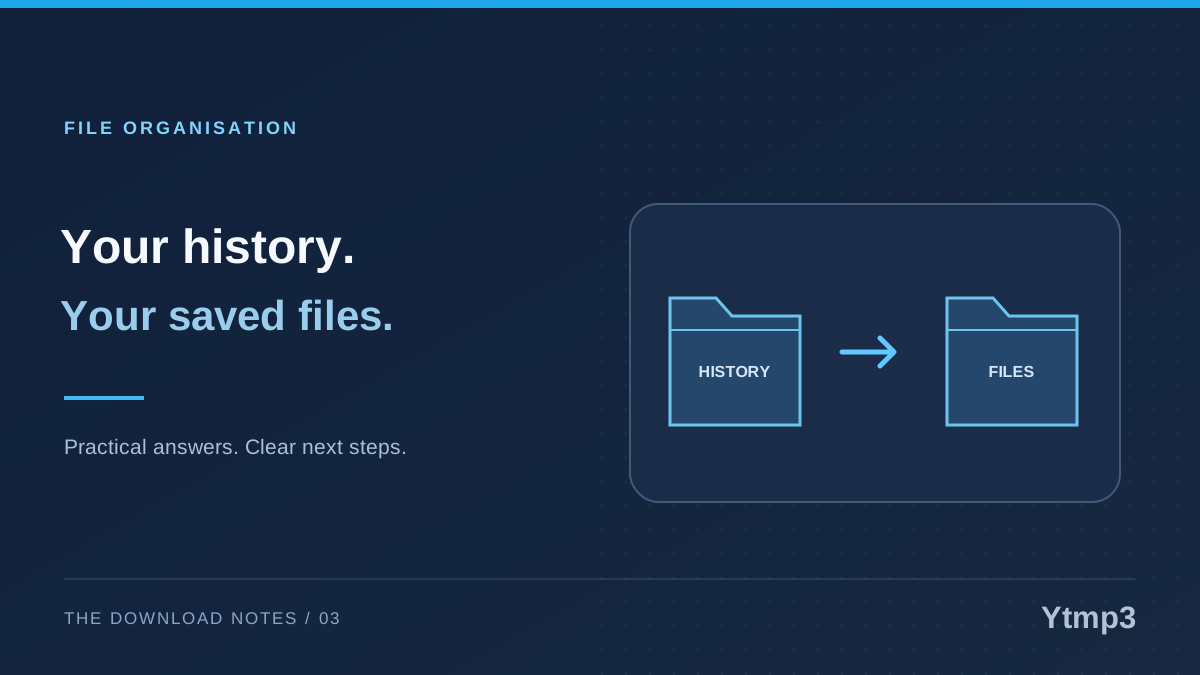
A browser's download history records transfers. Your music folder contains actual files. Clearing the first does not, by itself, delete the second, and keeping a history entry does not guarantee that its file is still present. Understanding those two locations makes missing-download questions much easier to answer.
After using Ytmp3, it is worth checking the saved file rather than relying on the browser's list alone. You might rename the file, move it into a collection or clear the list while tidying the browser. Those actions affect different parts of the workflow, even when their buttons appear close together.
What the download list actually tells you
A history entry can help you identify a recent transfer, see its status and locate the file it originally saved. It is a useful signpost. It is not a separate audio copy stored inside the list.
For example, imagine that you save a recording as evening-session.mp3 and later move it into a folder called Rehearsals. The file can remain perfectly usable there, even if the browser's original entry can no longer open its old location. Downloading again would create another transfer rather than repair that history entry.
The opposite can also happen. A completed entry may remain after you deliberately delete its file. The entry describes an earlier event; it is not proof that a playable copy is still available today. Check the destination before assuming that the browser keeps a backup.
Why Chrome and Safari can look different
Chrome distinguishes removing an item from its download history from removing the saved file. Safari on Mac also manages its download list separately from the downloaded items. The browsers can retain or clear list entries differently, so an empty list is not a reliable inventory of your computer.
This matters if you switch browsers. A file saved through one browser does not need to appear in the other browser's history to exist on the same device. Search the location you chose when saving rather than treating the second browser's empty list as evidence of a missing transfer.
Think about which question you are asking. “Did this transfer finish?” belongs to the browser's status information. “Where is the copy I kept?” belongs to the filesystem. “Can my player open it?” belongs to a playback check. Keeping those questions separate prevents circular troubleshooting.
Use a two-location check before downloading again
Begin with the browser entry when it is available. Note the filename and use its location action if that still works. Then inspect the actual folder. If you moved the file, look in the destination you selected for that project or collection.
Suppose you are preparing three recordings for a lesson. You might save them into Downloads first and move them into a Lessons folder afterward. If one history entry stops locating its file, check Lessons before requesting another copy. Compare the descriptive name, format and playback rather than matching only the first few words.
- Check whether the browser marks the transfer as complete.
- Look in the original or deliberately chosen destination.
- Consider any rename or move you performed afterward.
- Open the candidate file and confirm the recording.
- Download again only when you have established what is missing.
If this problem happens often, choose the download folder before saving. A predictable destination is easier to manage than a collection scattered between temporary folders and app libraries.
Delete the thing you actually mean to delete
There are two common cleanup goals. One is removing a transfer entry from the browser list. The other is reclaiming space by deleting a saved file. Read the action label and confirm which goal it serves before proceeding.
If you want to remove an unwanted audio copy, inspect the actual file and make sure it is not the only version you need. A copy used by a presentation or referenced by a music library may still matter even when its original download is old. Keep a recovery option where practical and avoid emptying the trash immediately when uncertain.
If your goal is privacy on a shared device, do not assume that clearing the download list removes every trace or stored copy. Consider the file itself, the account in use and any cloud destination you selected. This article explains the distinction, not a promise of complete data removal.
Common questions
Can an old history entry restore a deleted MP3?
The entry is not an audio backup. It may point toward the earlier source, but availability can change. Check any recovery location or backup you maintain before deciding whether a new authorized download is needed.
Why are there several entries for the same title?
You may have requested several transfers, or selected similarly titled recordings. Review the actual saved copies rather than deleting by title alone. The article on numbered filenames and duplicate downloads explains that distinction.
The simplest habit is to treat the browser list as a receipt and the folder as storage. Check the receipt to understand the transfer, then check storage to confirm the file you will use. That habit saves time without depending on how long a particular browser keeps its history.