Batch Rename Downloaded Tracks in Finder Without Changing Their Format
Finder can rename a selected group of downloaded tracks, which is useful when filenames are inconsistent or difficult to sort. The aim is to make the files easier to recognize, not to change their audio format. Keep the extension intact and test your naming pattern on a small copied set before using it more widely.
After saving eligible audio through Ytmp3, you may want names that fit your own collection. A folder of rehearsal recordings, for example, can benefit from session labels and a clear sequence. Treat the filename as a practical label rather than assuming it is the same as the song title displayed inside every music player.
Decide what the filename should communicate
A useful filename answers a few simple questions: what is this recording, which version is it, and where does it belong in this group? It does not need to contain every detail. An overly long name can be as difficult to scan as an unexplained code.
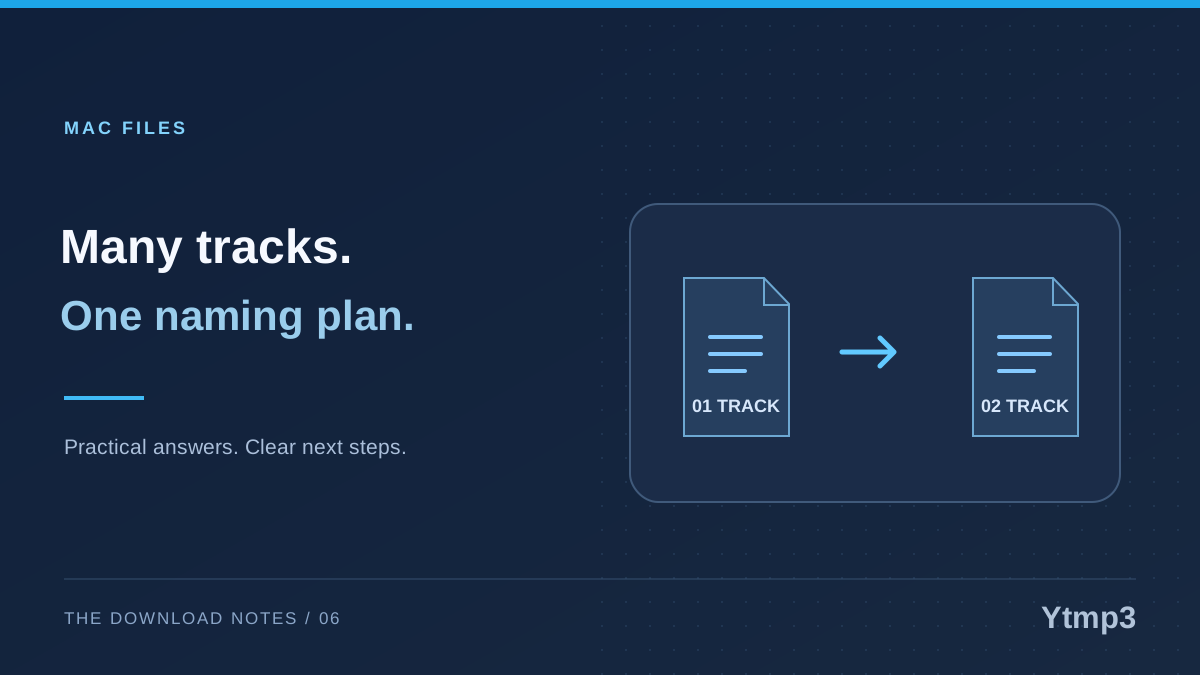
For a fictional practice session, names such as practice-01-warmup.mp3 and practice-02-full-run.mp3 give the reader a sequence and a purpose. For unrelated songs, a shared session prefix might be less helpful than keeping each existing descriptive title.
Write down one example of your intended pattern before changing files. If you cannot explain what the pattern adds, you may not need a batch rename. The safest collection is not necessarily the one with the most elaborate naming convention.
Choose the right kind of rename
Finder's batch-renaming options include replacing text, adding text and applying a formatted name with numbering or another sequence. Each solves a different problem. Replacing a repeated fragment is narrower than assigning every file an entirely new base name.
Use an addition when the current title is useful but lacks context. A session prefix can group recordings without removing their individual names. Use replacement only when you know the exact repeated text you want to change, and inspect whether it appears elsewhere in a title unexpectedly.
A numbered format is useful for an ordered set, but decide how that order should be established first. Do not assume that a folder's current visual order represents the intended listening sequence. Review the selected files and the resulting names before treating the numbers as meaningful.
Start with a small copied test set
Choose a few representative files and work on copies in a temporary folder. Include a long title, a short one and any unusual naming pattern in the collection. This reveals problems that may not show up when testing only the simplest file.
For example, a replacement intended to remove a common prefix may also affect a phrase inside another title. A numbering pattern may erase distinctions you still need. Inspect the result while the test set is small enough to understand at a glance.
- Make sure you can identify the untouched originals.
- Select only the intended test copies.
- Apply the narrowest rename operation that fits.
- Check the new names and their extensions.
- Open a sample to confirm that the recording remains recognizable.
Only expand to the full group after the pattern works. Avoid selecting everything in a mixed folder merely because a keyboard shortcut makes it convenient.
Preserve the extension and understand metadata
Changing a descriptive filename is different from changing the extension. Keep an MP3's .mp3 ending and an MP4's .mp4 ending unless you are correcting a known mistake. Finder can display filename extensions to make that distinction easier to inspect.
The title in a music player may remain unchanged after a rename because the player reads embedded track information or its own library record. A filename operation does not automatically rewrite that information. Do not repeatedly rename the same file in an attempt to force every app to show the same label.
Likewise, importing an MP3 into Music on Mac is a separate task. Check how the library stores or references the file before moving or renaming a source that the app already uses.
Check the destination and keep the result manageable
Once the names are correct, place the collection in the folder where you intend to use it. A consistent name helps most when it is paired with a predictable location. Choosing a download destination before saving can reduce the cleanup needed for future sessions.
Keep the untouched test originals until you have checked the final collection. Then decide deliberately which temporary copies you no longer need. Do not turn a naming cleanup into an accidental deletion of the only usable recording.
Does a rename change sound quality?
A filename-only rename does not re-encode the audio. It changes how the file is labeled, not the sound stored inside it.
Why does my player show the old title?
The player may use embedded metadata or a library entry instead of the filename. Treat that as a separate labeling layer rather than evidence that the Finder rename failed.
A good batch rename should make a collection easier to understand without obscuring its contents. Use a small test, preserve meaningful distinctions and keep the format extension accurate.