Why Renaming an MP4 File to MP3 Does Not Convert It
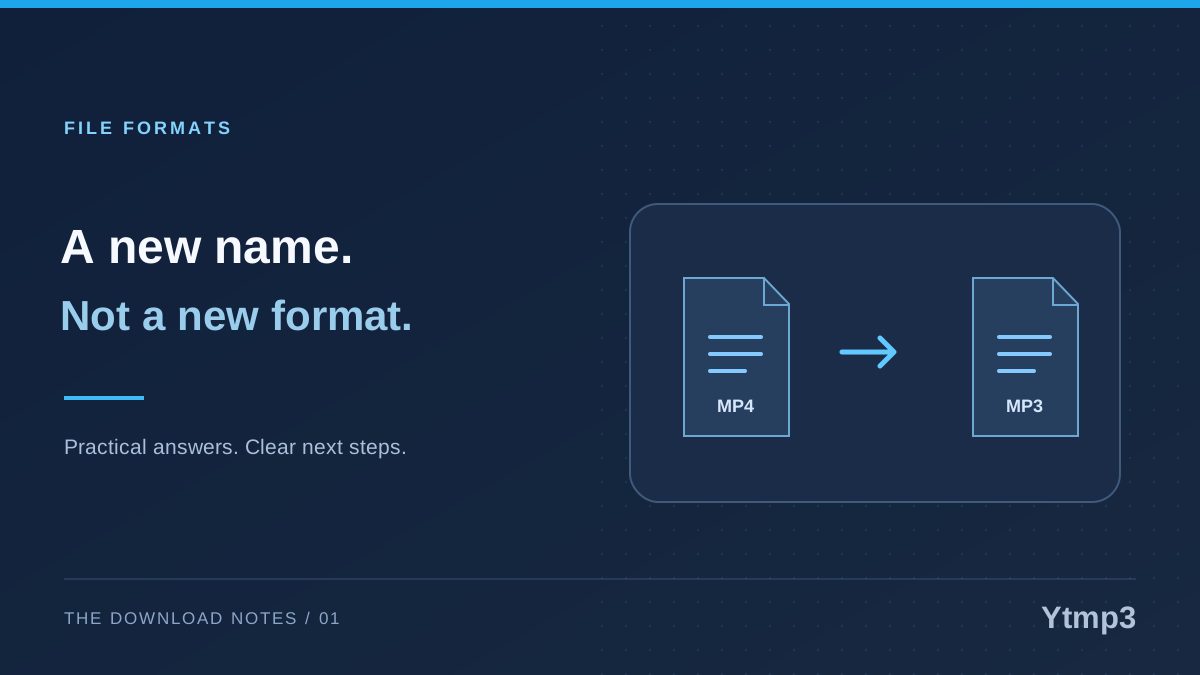
Renaming an MP4 file to MP3 changes its name, not the media stored inside it. The shortcut can make a file look like an audio download without actually creating one. If you want sound without the video, you need an audio output produced from the source, not a different ending on the filename.
This distinction matters when you move a download between a browser, a folder and a music player. Each can display a different label or icon, which makes an accidental rename surprisingly easy to miss. On Ytmp3, start by checking the source and the available output option. Once the file is saved, keep its extension consistent with the format you selected.
A filename describes the file, but does not rebuild it
Consider a fictional recording named harbour-rehearsal.mp4. The first part is a useful label. The extension gives software a clue about the type of file it should expect. Changing that name to harbour-rehearsal.mp3 does not remove the video, extract an audio track or run an encoder. It simply gives the existing file a misleading label.
The icon may change after a rename because your device associates the new extension with another application. That visual change is not evidence that the contents changed. Think of it as putting a different label on a storage box: the label affects where someone looks for it, but does not replace what is inside.
A misleading extension also makes later troubleshooting harder. A player may reject the file, another may recognize its contents anyway, and a third may display an unclear error. None of those outcomes makes renaming a reliable conversion method.
What a real conversion does differently
Actual conversion processes media data and produces an output in the requested format. For an audio download, that may involve selecting the audio from a video source and encoding it for the chosen output. An MP4 container and an MP3 audio file are not interchangeable labels.
Use the YouTube to MP3 converter when an eligible source and an available audio option fit your task. Confirm the displayed recording before continuing. A similarly named upload could be a live performance, an edited version or a different track entirely.
Do not expect conversion to manufacture missing sound or improve a poor recording automatically. The practical aim is to obtain the format you need from the correct source. Keep that aim separate from questions about volume, quality or the app you prefer for playback.
Show the full extension before you troubleshoot
Some file browsers hide familiar extensions. A name that looks like harbour-rehearsal may already end in .mp4, even if the ending is not displayed. Adding another suffix without checking can leave a confusing name such as harbour-rehearsal.mp3.mp4.
On Windows, File Explorer can show filename extensions through its View options. Finder on Mac also has extension-display settings. The exact menu depends on the system version. Use that visibility to inspect the file you already have, rather than repeatedly changing its name in the hope that one variation will play.
- Locate the saved file, not just its browser-history entry.
- Display its complete name and extension.
- Check which output you originally selected.
- Keep a copy before correcting an uncertain filename.
- Test the corrected file in an appropriate installed player.
Recover from an accidental rename
If you know the file was originally an MP4 and only changed its extension, restoring that original extension is a sensible first step. Do not guess when the original type is unknown. A record of the download option, the original source or a separate untouched copy can help establish what the file should be.
For example, suppose you downloaded a rehearsal video, renamed it while organizing a folder, and then found that your audio app would not open it. Correcting the filename can restore the expected association, but it still leaves you with a video file. If you need an MP3, return to the legitimate source and choose an available audio output separately.
A file association is another independent setting. You can choose a default MP3 player in Windows without changing the file's format. This is useful when a genuine MP3 opens in an unwanted app, but it cannot repair a mislabeled or incomplete download.
Common questions
Will renaming damage the audio itself?
A simple rename does not re-encode the audio. The immediate problem is that the name may no longer match the contents, which can confuse software and people. Preserve the original extension when changing the descriptive part of a filename.
Why does the renamed file still play in one app?
Some players inspect the media rather than relying only on its extension. Their ability to open it does not mean conversion occurred. Keep an accurate filename so that other apps and devices have a clearer starting point.
The reliable workflow is straightforward: choose the correct source, select an actually available format, finish the transfer and keep an honest filename. Rename a track to make it easier to recognize, not to turn one kind of media into another.